Tampilkan postingan dengan label scientific calculator. Tampilkan semua postingan

Retro Review: hp 9g

Retro Review:   hp 9g


Quick Facts:


Model:  hp 9g

Company:  Hewlett Packard

Years:  2003 (short production life)

Battery:  2 x AR76 or 2 x LR 44

Display:  10 digits, 2 digit exponent

Logic:  Algebraic - type in expressions the way you write them

Memory:  400 bytes, but can be designated as additional memory registers

Memory Registers:  26, can be extended to 59 memory registers 

Slide Case

Range:  9.999999999 * 10^-99 to 9.999999999 * 10^99, real numbers only


The hp 9g is a small sized graphing calculator, similar to the Citizen SRP-325G and the Casio fx-6300g.  The 9g offers more features than the fx-6300g. 


Features


*  Trig, logs, power, permutations, combinations, hyperbolic functions

*  Random numbers and integers, integer factorials, fraction, integer, sign, absolute value

*  Maximum, minimum, sum, and average up to 10 numbers 

*  Base conversions (decimal, binary, octal, hexadecimal) with Boolean logic (NOT, AND, OR, XOR, NXOR, NEG)

*  20 scientific constants, all SI units   

*  Conversions:  length, area, temperature, volume, mass, calories, pressure (always a good thing to have!)

*  Function graphing, more than one function can be plotted on top of each other.

*  One and Two Variable Statistics

*  Regressions:  linear, logarithmic, exponential, power, inverse, quadratic


Percent


The percent (%) just divides the argument by 100.   For example:  58% converts the number to 0.58.   That is good for multiplying or dividing but not for direct addition and subtraction.


Undo


The [ 2nd ] [ ENTER ] brings back the last thing that has been cleared or deleted.  I don't think this brings back programs that have been deleted though.  


Normal Distribution - One Variable Statistics


Normal distribution is based on one-variable statistics.  The t value is based on data point a_x, which is entered in the DATA menu.  The t point is calculated with the formula:


t = (a_x - mean) / σ


Three areas can be calculated:


P(t):  lower tail cumulative distribution

Q(t):  absolute value of the cumulative distribution between 0 and t

R(t):  upper tail cumulative distribution (I think)


Process Capability - One or Two Variable Statistics


A very unique function, available to the 9G are process capability calculations.  Depending on the mode, the following can be calculated:


C_ax = capability accuracy of x values

C_ay = capability accuracy of y values

C_px = potential precision of x values 

C_py = potential precision of y values

C_pkx = minimum of capability of values or capability precision of x values

C_pky = minimum of capability of values or capability precision of y values

ppm = parts per million (One variable stat mode only)


See the User Manual for formulas.


Storing a Formula


Formulas can be stored into any one of the program areas (P0- P9), using the [ SAVE ] [ PROG ] key sequence.  We can run programs from the Main mode by pressing [ PROG ] with 0 - 9.  Variables are prompted.


Example:  


X^2-3X+1 [ SAVE ] [ PROG ] 9  stores x^2 + 3*x + 1 into program P9.


Evaluating the function at x = -1 and x = 8.5


[ PROG ] 9 [ = ], (formula is displayed), [ = ], [CL/ESC], -1 at the X prompt, [ = ], result:  5


[ PROG ] 9 [ = ], (formula is displayed), [ = ], [CL/ESC], 8.5 at the X prompt, [ = ], result:  47.75


At all prompts, to enter a new number, press [CL/ESC] first, very important.  


Screen


The screen is split up in different sections.  


There are two lines during calculations.  The top line shows what is being calculated, while the bottom line shows the results on the right hand of the screen, in a smaller font.  


In program editing mode, we only get the top line as the bottom of the screen is taken by the two lines EDIT:  and *MAIN* (*DEC/HEX/OCT/BIN* for BASE-N programs).   


In data input, only the top line shows the data points.   


If you graph a function, the left side of the screen is the graph.  Pressing [ Trace ] will alternate between showing the x-coordinate and the y-coordinate.   Personally, I would like it better if both x and y were shown.   The small graph screen means that we really can't do much (no shading, no integration, have to arrow to approximate roots, but can draw lines and plot points).   


Not perfect, but one of the best uses of a small graphics calculator screen.  


Programming


The hp 9g has 400 steps that can be divided among 10 programs (P0 to P9).   Each program can either work in Main mode or Base mode.  Base mode programs are designated for base conversions and Boolean logic.  


The programming language is somewhat like the C programming language.   Each instruction or line can, but doesn't have to end with a semicolon (;).    However, any command called from the INST menu inserts a semicolon.  


Some program commands include:


INPUT var1[, var2, var3... ]  

Input with prompt "[var] = ".  


PRINT "text"/var, "text"/var, ...     

Display strings and variable values


IF (condition) THEN { do if true, commands separated by a semicolon } ; ELSE { do if false, commands separated by a semicolon }

If-Then-Else structure.  The Else part is optional.


Lbl/GOTO n

Lables can take values 0-9


GOSUB PROG n;

Calls a subroutine program n.  Semicolon is required.


SLEEP(time)

Pauses execution for seconds up to 105 seconds.


SWAP(varA, varB)

Swaps the values of variables A and B


; ◢

Stops the program and shows immediate results.   Press [ = ] to continue.


var++, var--   (The ++ and -- is from the INST menu, not pressing + or - twice)

Increase or decrease the variable by 1 after the expression is evaluated.


++var, --var (The ++ and -- is from the INST menu, not pressing + or - twice)

Increase or decrease the varaible by 1 before the epression is evaluated.


FOR(start condition; continue condition; next expression) {loop commands separated by a semicolon}

For loop that works more like a WHILE loop


start condition

WHILE continue condition

loop commands

next expression

END


The FOR loop is in C language.  This is the same syntax of the FOR equation editor command of the Plus42.  


On tomorrow's blog I will have sample programs for the hp 9g.  


Final Thoughts... For Now


I wish the hp 9g had better manuals or manuals that were formatted like a book instead of two large sheets.   But better than nothing and the documentation is detailed.  


The biggest drawbacks are the lack of screen space and small amount of programming steps.  Despite this, the hp 9g is an underrated marvel and is very unique in a line of HP calculators.    


Sources


hp 9g User Manual:  https://literature.hpcalc.org/official/hp9g-ug-en.pdf


hp 9g Examples:  https://literature.hpcalc.org/official/hp9g-htg-en.pdf


"HP 9g"  Wikipedia.   Last edited May 15, 2022.   Last Accessed September 24, 2022.  https://en.wikipedia.org/wiki/HP_9g


All original content copyright, © 2011-2022.  Edward Shore.   Unauthorized use and/or unauthorized distribution for commercial purposes without express and written permission from the author is strictly prohibited.  This blog entry may be distributed for noncommercial purposes, provided that full credit is given to the author. 


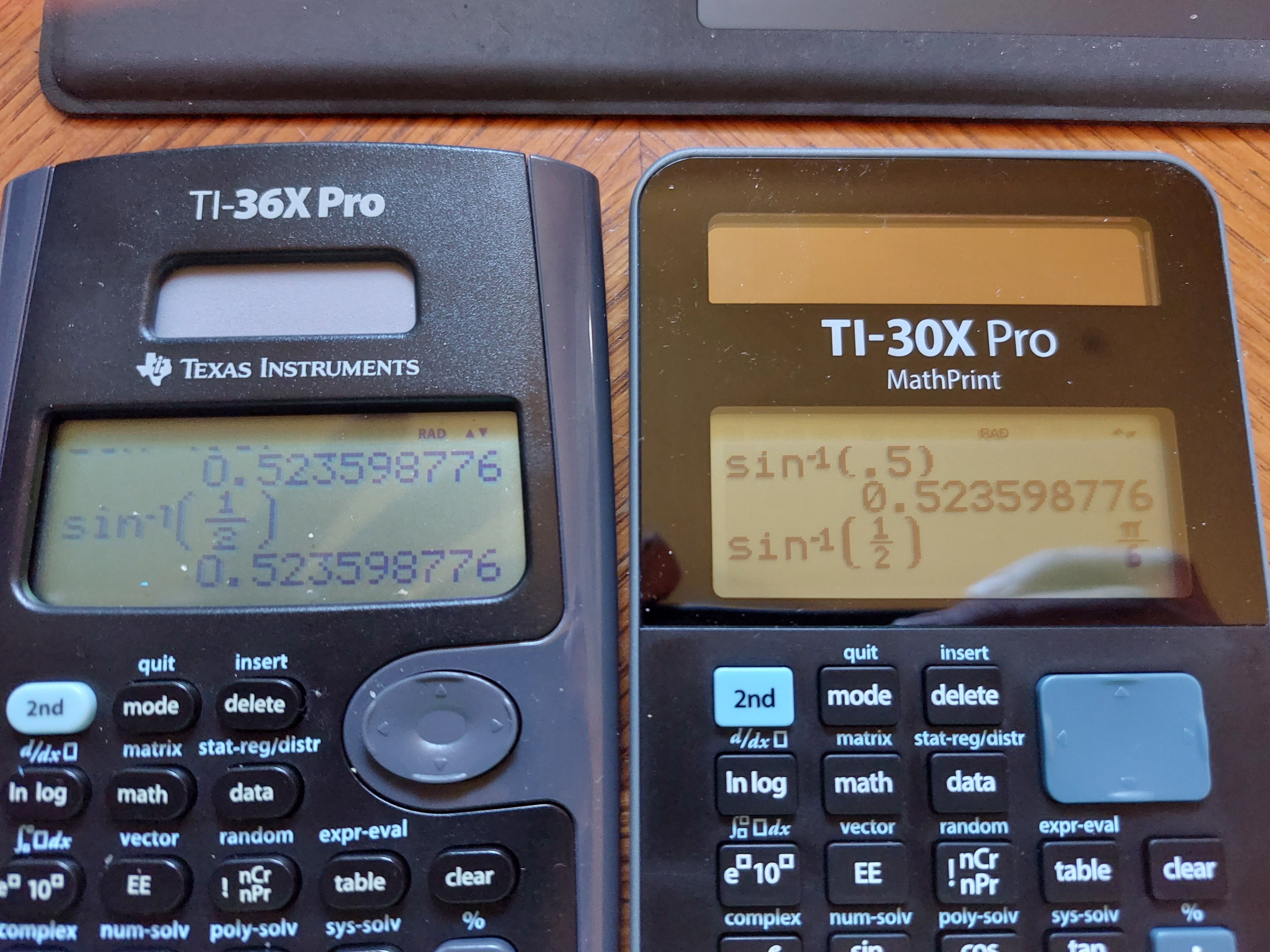
Texas Instruments: TI-36X Pro and TI-30X Pro Mathprint

 Essentially, the Texas Instruments TI-36X Pro and the TI-30X MathPrint are functionally equivalent.  What makes the two calculators different?


*  The TI-36X Pro is sold in the United States and in lot of the world, with the TI-30X MathPrint is sold primarily from Europe.  I ordered my TI-30X Pro MathPrint from the United Kingdom.  


Product pages from Texas Instruments:


TI-36X Pro (United States and Canada)

https://education.ti.com/en/products/calculators/scientific-calculators/ti-36x-pro


TI-30X MathPrint (Denmark, in Danish):

https://education.ti.com/da/products/calculators/scientific-calculators/ti-30x-pro-mp#specifications


Australia has a TI-30XPlus MathPrint, which is styled like the TI-30X Pro MathPrint, but without calculus functions.

https://education.ti.com/en-au/products/calculators/scientific-calculators/ti-30x-plus-mp?category=overview


*  Thanks to the body of the calculator being curved, the TI-36X Pro is slightly bigger than the TI-30X Pro MathPrint. 


*  The screen on the TI-36X Pro is a curved trapezoid, while the screen of the TI-30X Pro MathPrint has is rectangular.  


*  The TI-36X Pro has a circular arrow keypad while the TI-30X Pro MathPrint has a rectangular arrow keypad.  


* The TI-30X Pro Math print has black characters, while the TI-36X Pro has blue characters.


* The font on the keys of the TI-30X Pro Math are larger than than the font on the TI-36X Pro's keys.


Here are some pictures.


Either calculator is worth buying.  You  can see my review of the TI-36X Pro from 2011 here:

P.S. I still wish the TI-36X Pro/TI-30X Pro MathPrint had an alpha key instead of one key to press multiple times to get different variables.  That is my biggest gripe. 

Eddie


All original content copyright, © 2011-2022.  Edward Shore.   Unauthorized use and/or unauthorized distribution for commercial purposes without express and written permission from the author is strictly prohibited.  This blog entry may be distributed for noncommercial purposes, provided that full credit is given to the author. 


Retro Review: Retro Review Radio Shack EC-480

Retro Review:   Retro Review Radio Shack EC-480


Quick Facts


Model:  EC-480

Company:  Radio Shack

Years:  1976-1977

Type:  Scientific 

Batteries: 2 x AA, separate AC power 

Operating Modes:  Chain

Number of Registers: 1

Display:  8 digits, 1 left character for shift and error indicator


The EC-480 comes to have a brown, thin faux-leather cover.  


Pocket Sized Scientific Calculator


The EC-480 is a no-frills, lightweight, scientific calculator: just the basics.   Most likely, this would be an on today's smartphones.  The keys are plastic and thankfully the keys are responsive.   You can hear a click when the keys are pressed.  


Every of the 20 keys has a shifted function.  A smart move is the put the ON-OFF switch instead of making it a key.  


The keyboard:


C/CE; 1/X

F; cf  (Shift; Clear Shift)

EEX; conv

÷; arc  (for arcsin, arccos, arctan)

7; sin

8; cos

9; tan

×; sto 

4; e^x

5; 10^x

6; y^x

-; rcl

1; ln

2; log

3; √

+; m+

+/-; x^2

0; π

.;  (

=; )


The angle measurement used is degrees.


The conv function toggles the screen.  When a number is big or small enough to show a exponent, the conv functions shows the mantissa.  For example:


5.5.638 E 11 

× 1.2365 E 10 

= 6.8796 E 21

(conv) 6.8796387   (6.8796387 * 10^21)

(conv) 6.8796 E 21


The one thing I do not like about the EC-480 is that sometimes the 10^x function is sometimes inaccurate due to rounding error.  For example:


10^3 returns 1000

10^4 returns 10000

10^5 returns 99999.999

10^6 returns 999999.99

10^7 returns 10000000


Try 2^x * 5^x instead.  (Possible keystrokes:  2 y^x x = sto 5 y^x x * rcl =)


No Order of Operations


The EC-480 does not follow the order of operations, instead of the chain operating system.  This may be a turn off for some people.  Just to illustrate this:


4 + 5 × 6 returns 54

4 + ( 5 × 6 ) returns 34

5 × 6 + 4 returns 34


Green Display


The display has 9 characters.  The right 8 contain numbers, with the left as an indicator.   


#.#.#.#.#.#.#.#.#.


The first decimal point indicator appears when you press the blue shift key.  


The left character is a negative sign with nothing else is when the calculator is sleeping.  I like this feature to save battery.  


Source


Flow Simulation Ltd.  "Radio Shack EC-480"  calculator.org 2022.  https://www.calculator.org/calculators/Radio_Shack_EC-480.html   Retrieved June 5, 2022


Eddie


All original content copyright, © 2011-2022.  Edward Shore.   Unauthorized use and/or unauthorized distribution for commercial purposes without express and written permission from the author is strictly prohibited.  This blog entry may be distributed for noncommercial purposes, provided that full credit is given to the author. 


Retro Review: Hewlett Packard HP 33S

Retro Review:   Hewlett Packard HP 33S


The calculator with the Chevron Keyboard!

Quick Facts

Model:  HP 33S
Company:  Hewlett Packard
Years:  2003-2007
Type:  Scientific
Batteries: 2 x CR-2032
Operating Modes:  RPN, ALG
Memory:  31,277 bytes
Number of Registers: 27, A-Z, i
Display:  2 stack levels

Features

*  standard scientific calculator functions: trig, logs, power, absolute value, integer and fractional part, combinations, permutations, random numbers, hyperbolic functions, and more
*  factorial function that allows real numbers;  Γ(x) = (x - 1)!
*  polar and rectangular conversion functions,  very popular (for good reason) 
*  40 scientific constants
*  8 sets of SI-US conversions
*  base conversions 
*  algebraic mode (which I don't know anyone who would use this calculator in algebraic mode, but it's there)
*  linear regression  (y = mx + b)
*  fraction display mode ( [ ←| ] [ . ] (FDISP))
*  storage and recall arithmetic

We can store equations for evaluation, solving, and integration.  

Full list of conversions:

Polar (→θ,r) - Rectangular (→y,x)
Hours (→HR) - Hours-Minutes-Seconds (→HMS)
Degrees - Radians
Kilograms - Pounds
Degrees Celsius - Degrees Fahrenheit
Centimeters - Inches
Liters - Gallons

Programming

The HP 33S has keystroke programming and the set of commands similar from the HP 32SII:  

*  INPUT var
*  VIEW var  (views the variable without putting the variable's value on the stack)
*  Subroutines and Return
*  Comparison tests between x and 0, x and y.  If the test is true, execute the next step, otherwise skip the next step
*  ISG:  Increment and skip if greater
*  DSE:  Decrement and skip if equal or less than

The HP 33S designates one register, lower case i, for indirect addressing.  The absolute integer value of i determines where storage, recall, label, subroutine, integration variable, exchange, and function designation.  Use (i) to use indirect addressing.  Indirect registers can also access statistical sums:

(i) = 27,  i 
(i) = 28,  n
(i) = 29,  Σx
(i) = 30,  Σy
(i) = 31,  Σx^2
(i) = 32,  Σy^2
(i) = 33,  Σxy

The HP 33S has 26 labels, which restrict programs to 26.  Hence, LBL A instead of LBL A0001.   At first, I didn't like the restriction, but I learned to live with it and don't mind it as much.  

Let's Talk About the Chevron Keyboard

The HP 33S is a unique calculator it's keyboard style:  the keys take a slanted quadrilateral shape, with the center column of keys taking a chevron style shape.   At the top there is a directional pad.  Hewlett Packard took a chance with the design from the standard calculator shape, and it was not a homerun.   

The beginning production of the HP 33S was not successful. Keys had bad responses, the display was not up to par, and some keys are hard to press.   It took Hewlett Packard several production runs to get the keyboard working right, which unfortunately killed the reputation of the HP 33S.  Towards the end of its run, the keyboards were fixed.

I don't mind the unique keyboard, my biggest issue was the spacing the keys where sometimes the shifted functions and alpha characters did not have much space.  This made the keyboard busy.  I also do not like the black arrows on the green and purple backgrounds on the shift keys, I use HP used a lighter font for those arrows.  

A Phoenix of Calculators  

When the HP 33S first hit the market, the calculator was disliked.  Now, it is a sought after calculator.   The original price for the 33S was about $50 US dollars, now if you want one, be prepared to pay at least $75 US dollars, sometimes triple digits.  Make sure you are buying the HP 33S from later in the run (towards 2007).  

Another factor of why the HP 33S is becoming a collector's calculator, the successor, the HP 35S, had several shortcomings such as the number of mathematical bugs and the lack of the rectangular and polar conversion functions.   The HP 33S is closer to the classic style, like the HP 32S and HP 32SII.  

I don't expect to ever be an anniversary edition of the HP 33S but it was an underrated calculator and has its place in calculator history.

Tomorrow I have a list of programs and an integer demonstration.  

Eddie

All original content copyright, © 2011-2022.  Edward Shore.   Unauthorized use and/or unauthorized distribution for commercial purposes without express and written permission from the author is strictly prohibited.  This blog entry may be distributed for noncommercial purposes, provided that full credit is given to the author. 


Retro Review: Radio Shack EC-4035

Retro Review:   Radio Shack EC-4035


Quick Facts:


Model:  EC-4035

Company:  Radio Shack

Equivalent Of:  Casio fx-580

Years:  1986-1991

Type:  Scientific

Batteries: 1 x CR-2032

Operating Mode:  AOS

Memory Registers: 7  (K1 - K6, M)

Number of Digits: 10 (display), 8 in fractions, 2 digit exponents are in the top right of the display (10^xx)

Contrast Wheel


Features


*  Trigonometry, logarithmic functions

*  Base conversions with Boolean algebra

*  Engineering and Units mode

*  Single variable and linear regression  (y = A + Bx)

*  Gamma function

*  Complex numbers

*  6 constant memories (Kin/Kout) complete with storage arithmetic


The Radio Shack EC-4035 (Casio fx-580) uses an AOS (postfix) operating mode,  instead of typing expressions as they are written.


Statistics Mode


In linear regression, the equation used is y = A + Bx, where A is the y-intercept and B is the slope.  The statistics mode uses the six constant memories as follows:


K1 = Σx^2

K2 = Σx

K3 = n

K4 = Σy^2

K5 = Σy

K6 = Σxy


Gamma Function


The EC-4035 has a gamma function (Γ), which accepts all real numbers except for negative integers (-1, -2, -3, etc, because the gamma function is undefined there).  I wish this was available on more scientific functions.  


1 [a b/c] 2 [ Γ ] returns 1.772453851  (√π).  


The factorial function (x!) still only accepts non-negative integers.  


Complex Numbers


In the complex mode (Mode 3), the available functions are:


*  arithmetic (+, -, ×, ÷)

*  reciprocal (1/x)

*  argument and absolute value 

*  conjugate (x + yi → x - yi)

*  powers and roots, x^2, √


The arrow key [ → ]  and the key sequence [ SHIFT ] ( ← ) can scroll complex numbers.   Complex numbers are entered in rectangular form.  


Units and Engineering Modes


Results and calculations can be made using Engineering units and certain Electronics symbols.  All are accessed by using the [ [Sym] ] key.  The symbol each key has is located on the bottom right of the key in navy blue.   


[ MODE ] [ . ]:  Engineering Mode.  Results are shown, when applicable, with engineering symbols, for instance:


n:  nano, 10^-9

μ:  micro, 10^-6

m:  milli, 10^-3

k:  kilo, 10^3

M:  mega, 10^6

G:  giga, 10^9


The mode can be turned off by pressing [ MODE ] [ . ].


[ MODE ] [ 0 ]:  Unit Mode.  This is an enhancement to engineering mode to add electronic units:


V:  volts

A:  amperes

S:  seconds

W:  watts

F:  farads

C:  coulombs

Ω:  ohms


The electronic units can be combined with engineering units.    Also, the appropriate unit is determined in calculations.    To leave Unit Mode, go to Comp Mode by pressing [ MODE ] [ 1 ]. 


Engineering and Unit Mode are neat modes and it's really geared for electronic engineering and physics calculations.


Final Thoughts


The features of the EC-4035 gives a pretty standard advanced scientific calculators with additional features geared towards electronic engineering.   


Perhaps the next perfect calculator for electronic engineering would be a combination of the EC-4035 (fx-580), Casio fx-61f, and Calculated Industries Electronic Calc Pro (5070).  


Source:


"casio fx-580"  Voidware.  http://www.voidware.com/calcs/fx580.htm  Last Accessed April 22, 2022. 


Until next time,


Eddie


All original content copyright, © 2011-2022.  Edward Shore.   Unauthorized use and/or unauthorized distribution for commercial purposes without express and written permission from the author is strictly prohibited.  This blog entry may be distributed for noncommercial purposes, provided that full credit is given to the author. 


Retro Review: Texas Instruments TI-65

Retro Review:   Texas Instruments TI-65


Quick Facts:


Model:  TI-65 Technical Analyst 

Company:  Texas Instruments

Years:  1986-1989

Type:  Scientific, Programming

Batteries: 2 x LR44

Operating Mode:  AOS

Memory Registers:  up to 16 (0-F)

Programming Steps:  up to 100

Comes in case

Stopwatch and Timer Included


Features


The TI-65 is a late entry of the Texas Instruments and has the following features:


*  Trigonometry, Logarithms, Powers

*  Absolute value, integral and fraction part

*   DMS and HMS conversions  (degrees and hours, respectively, 360° for degrees, 24 hours)

*  Eight scientific constants

*  Eight conversions  (→ (US to SI),  INV for ← (SI to US), except Joules/calories which the order is reversed)

*  Base conversions to hexadecimal and octal only (unfortunately not binary nor any Boolean algebra)

*  Statistics

*  Linear Regression

*  Storage Arithmetic 

*  Numeric Integration

*  Programming


Scientific Constants (the values stored in the TI-65):

c:  Speed of light = 299792458 m/s

g:  Earth's gravity = 9.80665 m/s^2

me: Mass of an electron = 9.109534 * 10^-31 kg

e:  Charge of an electron = 1.6021892 * 10^-19 C

h:  Plank's Constant = 6.626176 * 10^-34 J s

k:  Boltzmann's Constant = 1.308662 * 10^-23 J/K

Na:  Avogadro's Constant = 6.022045 * 10^23 molecules/mole

R:  Gas Constant = 8.31441 J/(mole * K)


The SI units are printed with the constants on the TI-65, which I like.  


Conversions:

inches - centimeters

ounces - gallons

gallons - liters

degrees Fahrenheit - degrees Celsius

pounds per inch - Pascals

horsepower - kilowatts

Joules - calories

pounds (* foot) - Newtons


Programming, Integration, and Memory


The TI-65 has 100 programming steps that is shared with the memory register.   A register is worth seven programming steps, and the amount of memory registers available decrease as you type in steps.   Most programming steps are fully merged, hence 2nd, 3rd, and INV (indicated by a negative sign in the key code) with its key count as one step.  However, storage arithmetic takes two steps.


Maximum Number of Memory Registers vs. Maximum Amount of Steps


100 steps:  1 register (R0)

98 steps:  2 registers (R0, R1)

91 steps:  3 registers (R0, R1, R2)

84 steps:  4 registers (R0 to R3)

77 steps:  5 registers (R0 to R4)


In learn mode, the number of steps and the maximum number of registers are on display, along with the programming step.  


Memory registers can be protected by the [ 2nd ] (PUM) # sequence.  


A full set of programming commands are here:


DSZ:  decrement R# and skip if zero

INV DSZ:  decrement R# and skip if not zero

x<m:  test x < R#

INV x<m:  test x ≥ R#

x=m:  test x = R#

INV x=m:  test x ≠ R#

x>m:  test x > R#

INV x>m:  test x ≤ R#

LBL and GTO:  label (0-9, A-F, F1, F2)

F1 and F2:  user keys and labels

PAUSE:  pauses execution

SBR:  subroutine

INV SBR:  return

LIST:  display steps stored in memory


Integration:  Integration requires R0, R1, and R2 to be protected by PUM 2.  In the program, use R1 for x (you are given x in the register to start), end the function with [ = ] [ R/S ].    Calculation:  lower [ STO ] 1, upper [ STO ] 2, [ 2nd ] ( ∫dx) n [ R/S ]


Statistics:  Clear all protection first by PUM 0.   Six registers are used, and a maximum number of programming steps is 63 while statistical data is stored.  From the TI-65 manual, the following registers take the following values:


R1 = n * Σxy - Σx * Σy

R2 = n

R3 = Σy

R4 = n * Σy^2 - (Σy)^2

R5 = Σx

R6 = n * Σx^2 - (Σx)^2


Stopwatch and Timer


The TI-65, billed as a technical calculator aimed at professionals, includes a stopwatch and timer (but not a clock).  


Stopwatch:  

Press [ 3rd ] ( TUp↑) to start the stop watch.  Do this again to stop it.  


Timer:

Enter the time in hh:mm:ss  (hours:minutes:seconds) format, press [ 2nd ] ( TDn↓ ) to start the timer.   Do this again to stop it.   There are no sounds, the timer displays 00:00:00 when completed.  


You can store the timer into any available register. The store key is not required in this instance.   Recall the last time by pressing [ RCL ] [ : ].   


It may be possible to include the stopwatch and timer, however, they will not run in the background.   When the stopwatch or timer is working, the TI-65 is locked out of calculations.  Still, a nice feature.  


Closing Thoughts


I believe that the TI-65 is the penultimate calculator in the Galaxy series (the last is the TI Galaxy 67).  It's one of Texas  Instruments' most underrated calculators and production had continued into the 1990s, it could of had served as a non-graphing alternate to the TI-81.   Back in the early 1990s, graphing calculators were not as accepted in school; today, they are expected.


If you are collecting calculators, I would recommend the TI-65.  It's one of the best keystroke programming calculators Texas Instruments made since the TI 58/59, with a complete set of instructions and a decent amount of memory.  You do need a little patience because the TI-65 can be slow (especially compared to today's calculators).  The case and the sticker with helpful hints attached to it make a nice touch.  


(I don't recall the TI-67 Galaxy ever being on sale in the United States.)


Here are some TI-65 programs I posted in July 2016:

http://edspi31415.blogspot.com/2016/07/ti-65-programs-part-i-digital-root.html


http://edspi31415.blogspot.com/2016/07/ti-65-programs-part-ii-reynolds.html


http://edspi31415.blogspot.com/2016/07/ti-65-programs-part-iii-impedance-and.html


and will have more on tomorrow's post.


Sources:


Texas Instruments.  "TI-65 Technical Analyst" http://www.datamath.net/Leaflets/CL-947A_US.pdf     Flyer provided by datamath.net.  Last accessed April 10, 2022.


Texas Instruments TI-65 Technical Analyst Guidebook  1986


Toth, Viktor.  "TI-65"   rskey.org. 2022  http://www.rskey.org/ti65  Last Accessed April 29, 2022


Tschnenrechner-Sammlung, Tony   "TI-65 Galaxy"  Tony's Taschenrechner-Sammlung Calculator Collection https://www.thimet.de/CalcCollection/Calculators/TI-65/Contents.htm  Last accessed April 29, 2022


Eddie


All original content copyright, © 2011-2022.  Edward Shore.   Unauthorized use and/or unauthorized distribution for commercial purposes without express and written permission from the author is strictly prohibited.  This blog entry may be distributed for noncommercial purposes, provided that full credit is given to the author. 

Retro Review: Radio Shack EC-4026

Retro Review:   Radio Shack EC-4026


Quick Facts:


Model:  EC-4026

Company:  Radio Shack

Equivalent Of:  Casio fx-4500P, Casio fx-4500PA

Years:  1989-1991

Type:  Scientific, Programming

Batteries: 1 x CR-2025

Operating Mode:  Algebraic

Memory Registers: 26 (can be extended to 163 through the Defm command)

Program Steps:  1,103 (minimum of 7)

Number of Digits: 10 (display), 12 (precision)


Features


The Radio Shack EC-4026, a clone of the Casio fx-4500P, has a two line display.  On the top row shows formulas, equations, and prompts; and the bottom row displays results, and line numbers in programming mode.  


The modes of the EC-4026 include:


*  Angle Mode:  Degrees, Radians, Grads

*  Display Mode: Fix, Scientific Notation, Norm, Engineering Notation

*  Programming Write 

*  BASE-N:  base conversions and Boolean Logic.  Binary numbers have 32 bits, signed.

*  Linear Regression:  y = A + Bx

*  Single Variable Regression (SD:  Standard Deviation mode)


Extended Memory


By default, there are 26 memory registers, A-Z.   You can use the square brackets [ ] to refer to memory registers indirectly, with the syntax  letter[# registers from letter].


A[ 0 ]: A

A[ 1 ]: B

A[ 2 ]: C

A[ 3 ]: D

...

Z[ 0 ]:  Z


To extend the number of memory registers, execute [ MODE ] [ Ans ] and enter the number of extended memory registers. For example, Defm 10 extends the number of registers to 36, allowing for registers Z[ 1 ] to Z[ 10 ].


Defm 0 returns he number of registers to the default 26. 


Each extended memory costs 8 programming steps.


Independent Memory


The memory M is considered an independent memory with M+ and M- functions.


Formulas


In regular mode, we can store one formula (up to 127 steps) into memory with the IN command.  


Expressions can be entered.  If the expression is entered in the form of var=formula, the result is stored into the variable.   


The best part is that you can make prompts and result markers by adding a quoted comment next the variable.  


Use the OUT command to recall the formula and CALC command to run the calculation.


Example:


A"AREA"=π×R"RADIUS"²  [ IN ]


[ CALC ]

RADIUS?    (8.8)

AREA=     (243.2849351)


Integration


The integral command (∫) calculates the integrals of f(x) using Simpson's Rule.  


∫( f(X), low, high, n) 


n is an optional argument.  If n is included, the calculator uses 2^n partitions.  The maximum amount of partitions is 2^9 (512).   During calculation, the screen goes blank except for mode indicators.


Programming


The programming module is an early version of Casio basic.   Each program can have a file name.  The file names are sorted by chronologically.  In write mode, each line has a file number and a line number. (F# L#).  


Store calculations by using the syntax:


var=expressions


Variables can be either be defined (with their values) or undefined (the program will ask for the values each time a loop returns).   Define all the variables with the Fixm command.   We can undefine variables with the curly brackets { }.


The If structure is a little different, with the following symbols are used:


⇒  Then

≠⇒ Else  ( [ 2ndF ] [ a b/c ] )

◺ EndIf


(condition) ⇒ (do if true) : or ⊿ ≠⇒ (do if false) : or ⊿ ◺ (the if loop ends)


Subroutines, Pause (up to 4.5 seconds, with terms of half-seconds), and Goto/Labels (0-9, specific to each program) are included.  


The manual will also list a way to designate a program file as a data bank of names and their telephone numbers.


Sample programs follow.


Volume of a Frustum of a Cone:


Name:  FRUSTUM.CONE

F# L1  {H,Q,R}      // undefine H, Q, R

F# L2  H"HEIGHT"   // prompt for H with the prompt "HEIGHT?"

F# L3  Q"SMALL R" // prompt for Q with the prompt "SMALL R?"

F# L4  R"BIG R"  // prompt for R with the prompt "BIG R?"

F# L5  V"VOL"=H×(Q²+R²+Q×R)×π/3    // calculate volume, display V with "VOL="


Function Table


Name: TABLE

F# L1  {A,B,C}   // undefine A,B,C

F# L2  A"BEG"  // prompt for A with the prompt "BEG?"

F# L3  B"END" // prompt for B with the prompt "END?"

F# L4  N"POINTS" // prompt for N with the prompt "POINTS?"

F# L5  H=(B-A)/N

F# L6  X=A

F# L7  Lbl 0   // start the table

F# L8  X⊿   // display X

F# L9  F=2X-1⊿  // insert f(x) here (F=f(x))

F# L10  X=X+H

F# L11  X≤B⇒Goto 0:◺"FIN"  // if-then structure


Closing Thoughts


The EC-4026 is a great programming calculator.  The programming structure does present a learning curve due it being a beginning version of Casio basic.   


Sources


"Radio Shack EC-4026"  MyCalcDB.  April 21, 2014.   Last Accessed April 3, 2022.  http://mycalcdb.free.fr/main.php?l=0&id=4059


Toth, Viktor T.  "Casio fx-4500P"  rskey.org   2022.   Last Accessed April 3, 2022.  https://www.rskey.org/fx4500p


Toth, Viktor T. "Radio Shack EC-4026" rskey.org.  2022.  Last Accessed April 3, 2022.  https://www.rskey.org/ec4026


Until next time,


Eddie


All original content copyright, © 2011-2022.  Edward Shore.   Unauthorized use and/or unauthorized distribution for commercial purposes without express and written permission from the author is strictly prohibited.  This blog entry may be distributed for noncommercial purposes, provided that full credit is given to the author. 


Backlink 9999 Traffic Super

Order Now...!!!!